How to play an RTS on a phone (even with one thumb)
A mouse has a pointer, two buttons and a wheel. You have a thumb. Here is how mobile RTS games bridge that gap, and how to play any of them better.
On this page
The problem
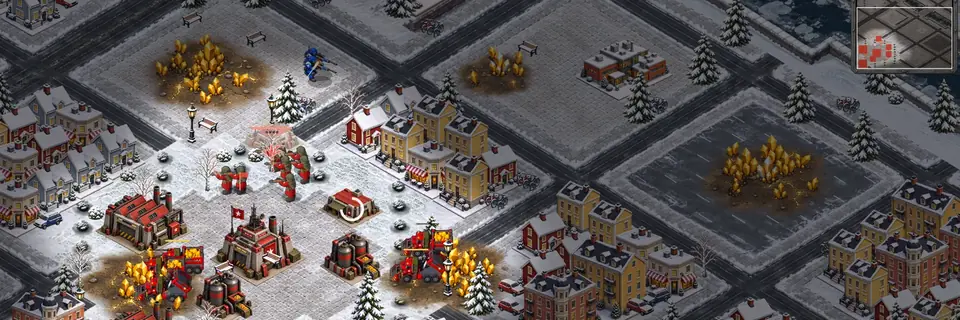
PC RTS controls assume four things a phone does not have: a precise pointer that hovers, two buttons (select and command), a wheel for zoom, and a keyboard full of hotkeys. Your finger covers what you are tapping, there is no hover, and every on-screen button eats space you need to see the battle. Every mobile RTS picks a different compromise.
The five control styles
| Style | How it works | Used by |
|---|---|---|
| Command bar | Tap units, then tap a big on-screen button (move, attack, build) and then the target | Rusted Warfare, Company of Heroes |
| Select-then-tap | Tap a unit or a group button; tapping the ground moves, tapping an enemy attacks | Northgard, Iron Marines, most premium ports |
| Drawn routes | Drag from a unit to draw the path it should follow | Frontier: Cold Front |
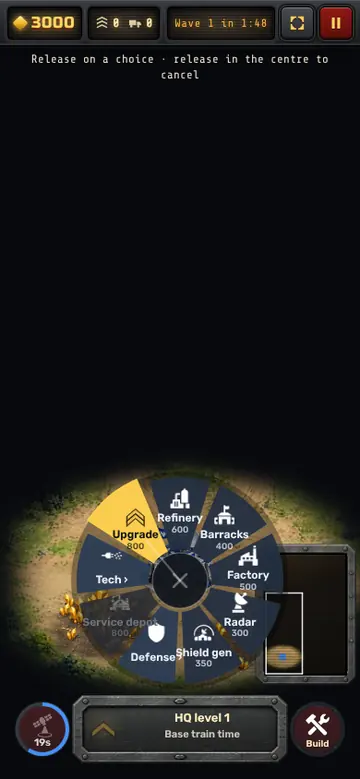
| Radial menu | Press and hold to open a ring of commands around your finger; slide and release to choose | Frontier: Cold Front, some console RTS |
| Card deploy | Drag a card onto the map; the unit fights on its own | Clash Royale-style lane battlers (not a full RTS) |
Most games mix two or three of these. The radial menu is the one that makes one-handed play possible, because the commands come to your thumb instead of your thumb travelling to the corners of the screen.
One-thumb RTS: how Frontier: Cold Front does it
We designed Frontier: Cold Front so the whole game, including base building, works upright with one thumb.
| Action | Gesture |
|---|---|
| Select a unit | Tap it |
| Move or attack-move | Tap the ground |
| Draw a route | Drag from the selected unit |
| Select a group | Drag starting on one of your units, or hold the ground → Select → draw a loop |
| Build, train, rally, abilities | Press and hold (about a third of a second): a radial menu opens under your thumb. Slide to a wedge, release |
| Nested menus | Keep holding and dwell on a ▸ wedge to open the next ring |
| Place a building | Drag anywhere to move the ghost, tap ✓ |
| Walls | Drag from the first tile to the last, tap ✓ |
| Zoom | Pinch, or double-tap and slide |
Tips for any mobile RTS
- Zoom out more than feels natural. Seeing the battle matters more than seeing the unit. Zoom in only to place buildings.
- Set rally points. New units walking to the front on their own saves dozens of taps.
- Queue production in batches. Most games let you queue five units at once (Frontier's ring has ×5).
- Use group buttons and select-all. Phones make precise selection slow; whole-army commands are your friend.
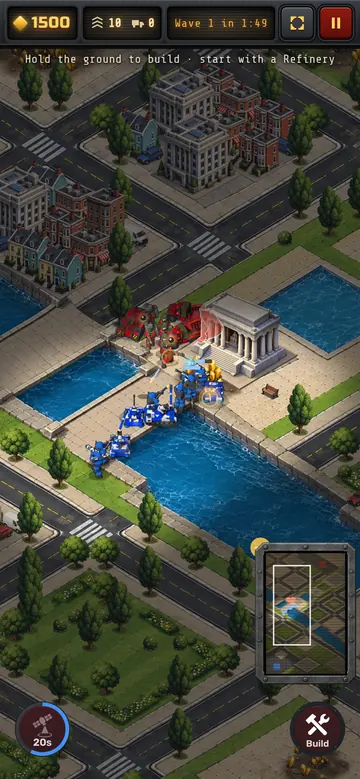
- Fight at chokepoints. Bridges and passes reduce the micro you need, which matters more with a thumb than with a mouse.
- Turn off notifications and use Do Not Disturb. A banner over the minimap at the wrong moment loses fights.
- Use the pause. Single-player modes in many mobile RTS games pause when you leave the app; use it rather than fighting through a phone call.
- On a tablet, try landscape and both hands; the extra room helps in big fights.
- Plug in a mouse on a tablet or Chromebook if the game supports it. Browser games like Frontier switch to PC controls the moment they see a mouse.
Which phone RTS suits which control style?
- Prefer big buttons and lots of precision: Rusted Warfare or Company of Heroes in landscape.
- Want relaxed, few commands: Northgard or Iron Marines.
- Want one hand on the bus: Frontier: Cold Front in portrait.
See our full lists for iPhone and Android.
Frequently asked questions
Can you play a real RTS on a phone?
Yes. Games like Rusted Warfare, Northgard, Company of Heroes and Frontier: Cold Front are full real-time strategy games on phones. They replace mouse controls with taps, drags, on-screen buttons and radial menus.
How do you select multiple units on a touch screen?
Depending on the game: a select-all or select-type button, a drag box after tapping a selection button, drawing a loop around units, or starting a drag on one of your own units. In Frontier: Cold Front you hold the ground, choose Select and draw a loop, or drag from one of your units.
Is it possible to play an RTS with one hand?
With a game designed for it. Frontier: Cold Front is played in portrait with one thumb: everything is a tap, a drag or a press-and-hold radial menu that opens under your thumb. Most landscape mobile RTS games need both thumbs.
All game names, trademarks and logos mentioned here belong to their owners and are used only to identify the games. Frontier: Cold Front is an independent game by Rick-y Media AB and is not affiliated with, endorsed by or sponsored by Electronic Arts, Blizzard Entertainment, Microsoft or any other company named on this page.
Keep reading
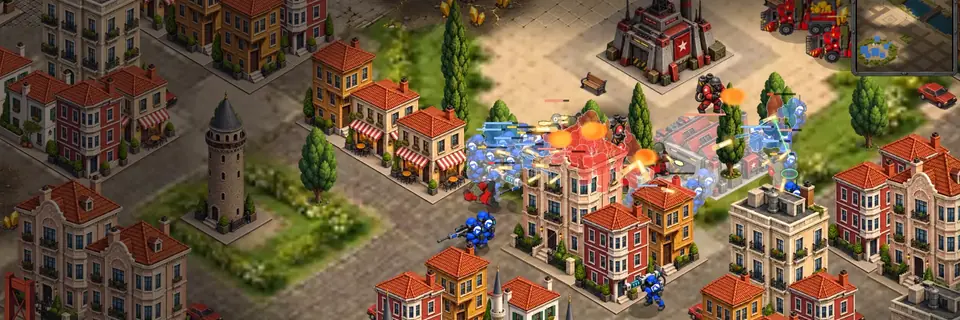 Mobile RTS gamesReal RTS games for iPhone and Android, how touch controls work, and picks for five-minute sessions.
- Best RTS games on iPhoneNorthgard, Company of Heroes, Rusted Warfare, Iron Marines and a free one-thumb RTS in Safari.
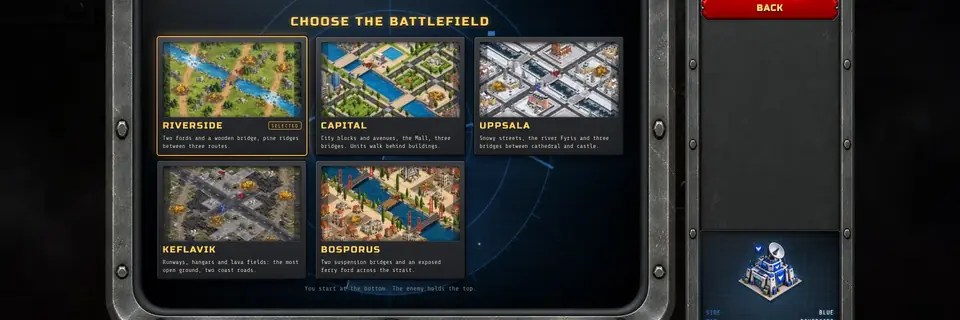 Best RTS games on AndroidRusted Warfare, Mindustry, Northgard, Company of Heroes and a free browser RTS for Android.
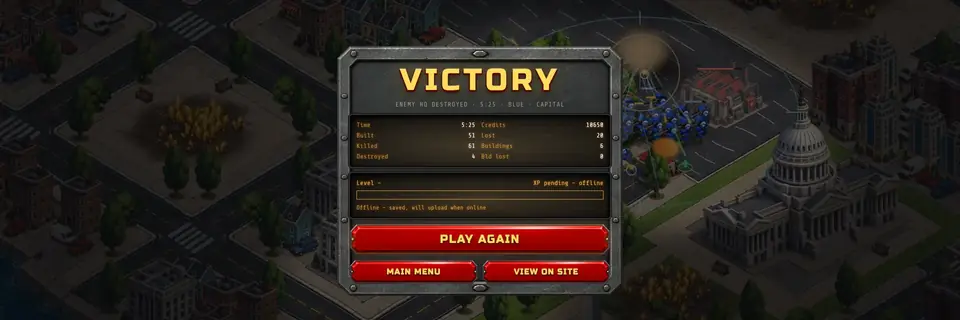 How to get better at RTS gamesTwelve habits that carry over to every RTS: production, scouting, build orders, counters and more.